Mostrando entradas con la etiqueta FACEBOOK. Mostrar todas las entradas

jueves, 19 de julio de 2012

Agregar el FanBox de Facebook en el blog con diferente color de fondo

El Articulo principal se muestra en: Agregar el FanBox de Facebook en el blog (sin bordes y un extra) El FanBox o LikeBox de Facebook es esa cajita que muestra los avatares de las personas a las que les gusta determinada página de Facebook. Agregar el Fanbox en Blogger es bastante sencillo y no requiere quebrarse la cabeza con códigos. Primero entra a Facebook Developers . Ahí agrega la URL de tu página de Facebook, selecciona el ancho del gadget, color del tema, si deseas mostrar los avatares, la actividad reciente y la cabecera del gadget. Ya que lo tengas listo da click en Get Code.
Aparecerá un código para copiar; copia el código que está debajo de iframe. Luego entra en Diseño | Elementos de la página | Añadir gadget | HTML/Javascript y ahí pega el código que copiaste. Con eso ya tienes el Fanbox en tu blog.


Algunas veces la página de Facebook anda medio loca y en el código nos pondrá una altura de 62px con lo cual se verá sólo un rectángulo. Para arreglarlo sólo cambia el alto (height) del código en las dos veces que aparece:
<iframe src="http://www.facebook.com/plugins/likebox.php?href=http%3A%2F%2Fwww.facebook.com%2Ffans.ciudadblogger&amp;width=292&amp;colorscheme=light&amp;show_faces=true&amp;stream=false&amp;header=true&amp;height=289" scrolling="no" frameborder="0" style="border:none; overflow:hidden; width:292px; height:289px;" allowTransparency="true"></iframe>

Con una altura de 289px será más que suficiente, pero si deseas mostrar más avatares entonces agrega una altura mayor.

Notarás que el Fanbox tiene integrado unos bordes grises que no se ven nada estéticos y además debajo aparece el icono de Facebook con el texto Plug-in socialde Facebook.
Lo que haremos ahora será quitar esos bordes, el texto debajo, y aprovechando podemos modificar el color de fondo.
Para aplicar estos cambios agrega a tu código lo que está en color azul:
<div class='likeboxwrap'>
<iframe src="http://www.facebook.com/plugins/likebox.php?href=http%3A%2F%2Fwww.facebook.com%2Ffans.ciudadblogger&amp;width=292&amp;colorscheme=light&amp;connections=15&amp;stream=false&amp;header=true&amp;height=289" scrolling="no" frameborder="0" style="border:none; overflow:hidden; width:292px; height:289px;" allowtransparency="true"></iframe>
</div>

<style type='text/css'>
div.likeboxwrap {
width:290px; /* Quitar 2px al ancho del gadget */
height:264px; /* Quitar 25px al alto del gadget */
background-color:#8A084B; /* Color de fondo del gadget */
overflow:hidden;
}
div.likeboxwrap iframe {margin:-1px}
</style>

Y el resultado será este:


Aquí hay que tomar algunas cosas en consideración:
Para poder aplicarle un color de fondo es necesario que tengas el tema light en el gadget y NO el dark.
Dentro del código extra que hemos agregado hay unos estilos del ancho y alto del gadget; al ancho (width) del Fanbox le restaremos 2px para eliminar por completo el borde; y al alto (height) le restaremos 25px. Eso se cambia en donde se ha señalado en color verde.
En algunos casos cuando el Fanbox sea más grande o cuando hayan elegido no mostrar la cabecera del FanBox entonces podrían restarse otros valores del acho y alto, ya será cuestión de que cada uno modifique ese ancho y alto hasta que obtenga el mejor resultado.


sábado, 9 de abril de 2011

Como poner el Boton Facebook de Compartir en tu blog de Blogger II

Mas Informacion: Facebook Share Count Buttons For Blogger


Facebook has now officially introduced the Retweet like facebook buttons for your blogs or sites. These facebook buttons look much similar to the Retweet buttons by Tweetmeme. Facebook has 5 styles of Sharing buttons. Here we will see two of them.

Adding a Facebook share count button will show a neat count of how many times your blog post has been shared on Facebook.

Facebook Share Button Style 1

facebook-share-button-for-blogger-1

Code for Facebook Share Button Style 1

<div style="float:right;padding:4px;">

<a expr:share_url='data:post.url' name='fb_share' rel='nofollow' type='box_count'/>
<script type="text/javascript" src="http://static.ak.fbcdn.net/connect.php/js/FB.Share"/>
</div>


Facebook Share Button Style 2


facebook-share-button-for-blogger-2


Code for Facebook Share Button Style 2


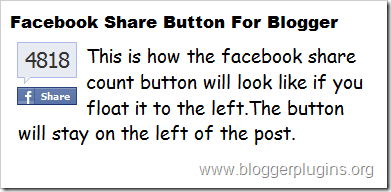
<div style="float:left;padding:4px;">
<a expr:share_url='data:post.url' name='fb_share' rel='nofollow' type='box_count'/>

<script type="text/javascript" src="http://static.ak.fbcdn.net/connect.php/js/FB.Share"/>
</div>


Facebook Share Button Compact Style 1


facebook-share-button-for-blogger-3


Code for Facebook Share Compact Button Style 1


<div style="float:right;padding:4px;">
<a expr:share_url='data:post.url' name='fb_share' rel='nofollow' type='button_count'/>
<script type="text/javascript" src="http://static.ak.fbcdn.net/connect.php/js/FB.Share"/>

</div>


Facebook Share Button Compact Style 2


facebook-share-button-for-blogger-4


Code for Facebook Share Compact Button Style 2


<div style="float:left;padding:4px;">

<a expr:share_url='data:post.url' name='fb_share' rel='nofollow' type='button_count'/>
<script type="text/javascript" src="http://static.ak.fbcdn.net/connect.php/js/FB.Share"/>
</div>


How to install Facebook Share Count Button on your Blogger Blog?


1.Select one of the Share Button Styles and copy the Corresponding Code.


2.Now login to your Blogger Dashboard and navigate to Layout > Edit Html and check the check box which says “Expand widget templates”


3.Find this piece of code


<div class='post-header-line-1'/>

and immediately after that place our Facebook share button code(that you copied)

If you were unable to find this code in your template,then look for the first occurrence of


<data:post.body/>


and immediately before that paste our Facebook Share button code(that you copied).


5.Save the template and you should get a facebook share count button near each of your blog posts.

Como poner el Boton Facebook de Compartir en tu blog de Blogger

VER Articulo inicial en: Botón para compartir de Facebook


Ya hace un tiempo vimos cómo poner un botón para compartir en Twitter y Facebook, pero lamentablemente el botón de Facebook ha dado muchos problemas en cuanto a la velocidad con la que carga y específicamente con el servidor de Fbshare que suele caerse seguido y por lo tanto no se muestra. Así que vamos a usar uno que ha sido desarrollado por Facebook y por lo tanto no debe dar los mismos problemas que ha dado el otro.


Para colocarlo en el blog sólo entra en Diseño | Edición de HTML, marca la casilla Expandir plantillas de artilugios y busca esta etiqueta:


<div class='post-body entry-content'>


Justo debajo de ella agrega lo siguiente:

<b:if cond='data:blog.pageType == &quot;item&quot;'>

<div style='float:right; padding:5px;'>

<a href='http://www.facebook.com/sharer.php' name='fb_share' type='box_count'>Compartir</a><script src='http://static.ak.fbcdn.net/connect.php/js/FB.Share' type='text/javascript'/>

</div>


</b:if>


El resultado será este:


facebook widget


Si quisieras el botón con el número a su derecha entonces usa este código:

<b:if cond='data:blog.pageType == &quot;item&quot;'>

<div style='float:right; padding:5px;'>

<a href='http://www.facebook.com/sharer.php' name='fb_share' type='button_count'>Compartir</a><script src='http://static.ak.fbcdn.net/connect.php/js/FB.Share' type='text/javascript'/>


</div>

</b:if>


El resultado será este:


facebook widget


Si quisieras poner sólo el botón, si el número de veces que se ha compartido entonces usa este código:

<b:if cond='data:blog.pageType == &quot;item&quot;'>

<div style='float:right; padding:5px;'>


<a name="fb_share" type="button" href="http://www.facebook.com/sharer.php">Compartir</a><script src="http://static.ak.fbcdn.net/connect.php/js/FB.Share" type="text/javascript"></script>

</div>

</b:if>


El resultado será este:


facebook widget


Pero si tampoco quisieras un botón y sólo deseas un enlace entonces usa este código:


<b:if cond='data:blog.pageType == &quot;item&quot;'>

<div style='float:right; padding:5px;'>

<a name="fb_share" type="icon_link" href="http://www.facebook.com/sharer.php">Compartir</a><script src="http://static.ak.fbcdn.net/connect.php/js/FB.Share" type="text/javascript"></script>

</div>

</b:if>


El resultado será este:


facebook widget


En el caso de los primeros dos botones es posible que cuando lo pongas no veas el número ya sea arriba o a la derecha, pero aparecerá en cuanto le des click para compartir y después de eso siempre se mostrará.


Si quisieras el botón al lado del título de la entrada entonces pega el código debajo de esta línea:

<b:if cond='data:post.title'>


Si ya usas el botón anterior de Fbshare y quieres cambiarlo por este, sólo busca en tu plantilla este código:

<script>var fbShare = {

url: &#39;<data:post.url/>&#39;,


}</script>

<script src='http://widgets.fbshare.me/files/fbshare.js'/>
O este otro:

<script>var fbShare = {

url: &#39;<data:post.url/>&#39;,

size: &#39;small&#39;,


}</script>

<script src='http://widgets.fbshare.me/files/fbshare.js'/>


Y cámbialo por el nuevo código de Facebook que hayas elegido.


Toma en cuenta que el botón SÓLO se verá en las entradas individuales, no en la portada, esto es debido a que si se pone en portada da muchos errores.

Si bien se supone que este botón es más eficiente que el de Fbshare hay que recordar que es normal que algunas veces pueda tardar un poco en cargar el gadget pues muchas veces el servidor se satura y se alenta, tal como sucede co cualquier otro gadget que usemos.

domingo, 13 de febrero de 2011

Como averiguar en que fecha entraste a FAcebook

Pues no hay una forma directa.

Las opciones son:

1. Fijate la foto de tu primer Avatar en facebook

2. Busca la notificacion de bienvenida en tu correo

3. si tu correo es gmail compruebalo usando las opciones de busqueda.

La mas Util es:

after:
before:
Permite buscar mensajes enviados dentro de un período de tiempo concreto.*
*El formato de las fechas debe ser aaaa/mm/dd.
Ejemplo: after:2004/04/16 before:2004/04/18
Hace referencia a los mensajes enviados entre el 16 de abril de 2004 y el 18 de abril de 2004*.
*Más exacto: los mensajes enviados después de las 12:00 AM (o 00:00) del 16 de abril de 2004 y antes del 18 de abril de 2004.

lunes, 4 de octubre de 2010

Inserta ustream a una pagina de Facebook

Articulo Principal: Insert Ustream with static FBML

Hace unos días teníamos que hacer una transmisión de video en vivo para un cliente vía su Like/Fan Page.


Decidimos utilizar el servicio de USTREAM para el streaming de video porque es uno de los mejores.

Para insertar cualquier elemento (en este caso el video en vivo) dentro de una pestaña de Facebook necesitamos utilizar código FBML.


Empecé el google search con ustream fbml static y no encontré nada que resuelva mi problema exactamente así que modifiqué la búsqueda a youtube fbml static y encontré esto:


<fb:swf

swfbgcolor=”000000″ imgstyle=”border-width:3px; border-color:white;”

swfsrc=’http://www.youtube.com/v/JOt2Qp0H9G8

imgsrc=’http://img.youtube.com/vi/JOt2Qp0H9G8/2.jpg’ width=’340′ height=’270′ />


Luego un par de neuronas hicieron conexión y recordé que USTREAM da servicio de embeder por HTML con un código como este:


<object classid=”clsid:d27cdb6e-ae6d-11cf-96b8-444553540000″ width=”400″ height=”251″ id=”utv658922″><param name=”flashvars” value=”autoplay=false&amp;brand=embed&amp;cid=637790&amp;locale=en_US”/><param name=”allowfullscreen” value=”true”/><param name=”allowscriptaccess” value=”always”/><param name=”movie” value=”http://www.ustream.tv/flash/live/1/637790?v3=1″/><embed flashvars=”autoplay=false&amp;brand=embed&amp;cid=637790&amp;locale=en_US” width=”400″ height=”251″ allowfullscreen=”true” allowscriptaccess=”always” id=”utv658922″ name=”utv_n_816458″ src=”http://www.ustream.tv/flash/live/1/637790?v3=1” type=”application/x-shockwave-flash” /></object>


Lo que sigue es intercambiar las partes que he señalado con negrita


<fb:swf

swfbgcolor=”000000″ imgstyle=”border-width:3px; border-color:white;”

swfsrc=’http://www.ustream.tv/flash/live/1/637790?v3=1OJO

imgsrc=’http://img.youtube.com/vi/JOt2Qp0H9G8/2.jpg’ width=’340′ height=’270′ />


Sólo faltaría modificar la url de la imagen previa antes de cargar el video


imgsrc=’http://img.youtube.com/vi/JOt2Qp0H9G8/2.jpg’


Parece algo elemental pero no encontré nada en google =)


PD: USTREAM ofrece un servicio de hacer la conexión con facebook pero no es automatizado debes completar un formulario y esperar por la respuesta 2 semanas por lo menos.

Como añadir YouTube Videos o Flash a Paginas Facebook con Static FBML Pages

Articulo Original: How to Add YouTube Videos or Flash to Facebook Static FBML Pages

As detailed in my previous blog post on the Facebook application Static FBML, this Facebook app is a great way to create custom pages with layouts created in CSS/HTML, or by using Facebook's proprietary FBML (Facebook Markup Language).


Recently, someone asked us how to embed video in a Static FBML page. Well, you can actually embed any Flash object using FBML, and it's pretty easy. Here's how it's done if you want to embed a YouTube video (Note: you can use this technique to embed any Flash object with the .swf extension).


PLEASE NOTE:


  1. Static FBML can only be used on Fan Pages, not Personal Profiles or Group pages.

  2. You can only use CSS and HTML in these pages, and FBML.

  3. Your video cannot start playing when the page loads. Facebook requires a user action (usually a click) to load Flash or run JavaScript.

  4. To position your video on your page, put the fb:swf code in a containing DIV, set to the width of the video, and position the DIV using CSS.


If you can't get this working::


  • Check your URLs: Make sure the URLs to both the activation image (imgsrc) and the video or Flash object are correct. You can test them by pasting the URL into your browsers address bar and accessing the image or video channel directly. If you can’t access them via this method, your URL is incorrect.

  • URLs are case sensitive: All directory and file names after the domain name are case sensitive. One misplaced capital and it won't work!
  • Close the fb:swf tag Make sure you have closed the <fb:swf> tag, with "/>" (without the quotes). If the tag isn’t closed, it won’t work.


  • Make sure quotes match and are closed: It doesn’t matter if they’re single (‘) or double (“), but they must match and they must be closed (width=’xxx’ or width=”xxx” – NOT width=’xxx or width=”xxx or width="xxx' ).


Embed a YouTube video using FBML


Here's the code you put on your Static FBML page:


<fb:swf

swfbgcolor="000000" imgstyle="border-width:3px; border-color:white;"

swfsrc='http://www.youtube.com/v/xxxxxxxxxx'

imgsrc='http://img.youtube.com/vi/xxxxxxxxxx/2.jpg' width='340' height='270' />


Replace "xxxxxxxxxx" with the YouTube video ID, which is the string of characters after the "v=" in the URL in your browser's address bar (up to the "&" or anything following it, if you see that after the string of letters and numbers). For example:


http://www.youtube.com/watch?v=JOt2Qp0H9G8&feature=related


You would replace "xxxxxxxxxx" with "JOt2Qp0H9G8" in both places, resulting in:


<fb:swf

swfbgcolor="000000" imgstyle="border-width:3px; border-color:white;"

swfsrc='http://www.youtube.com/v/JOt2Qp0H9G8'

imgsrc='http://img.youtube.com/vi/JOt2Qp0H9G8/2.jpg' width='340' height='270' />


You can also change the values for "swfbgcolor" and "imgstyle" to your preferences.


The value "swfsrc" is the absolute URL to the Flash file you want to embed (YouTube videos are in Flash format).


The Preview / Activation Image — imgsrc


Facebook requires a user action (usually a click) to trigger Flash or JavaScript to run. There is no way around this requirement. The "imgsrc" image is the image the user will see in place of your video. When s/he clicks the image, your video loads.


To eliminate a second click to start the video after it loads, try setting your video to autoplay so that it plays immediately when the user clicks the activation image. You do this by appending "&autoplay=1" to the swfsrc URL:


swfsrc = 'http://www.youtube.com/v/JOt2Qp0H9G8&autoplay=1'


The value "imgsrc" is the preview/activation image. The YouTube thumbnails are small( usually 120x90 pixels), so you don't really want to use those for your activation image.


You can change the "imgsrc" URL to point to any image online, so you should probably create your own image at the 340x270 dimensions (or whatever dimensions you wish — the 340x270 is just an example), upload it to your server (or use an image hosting service like Photobucket to host your images).


On your Fan Page, an image appears first (the value of "imgsrc"). When the user clicks the image, it turns into the Flash object.


Positioning / Aligning your Video on the Page


If, for example, you want to center your video/Flash on the page, you need to put it inside a containing DIV and position the DIV using CSS, as in this example using the width of 492 pixels:


<div style="margin:0 auto; width:492px;">

<fb:swf


swfbgcolor="000000"

imgstyle="border-width:3px; border-color:white;"

swfsrc='http://www.youtube.com/cp/vjVQa1PpcFNbP_fag8Pvon-YFxwXVQJTFzsNmHqblLI='

imgsrc='http://www.hyperarts.com/facebook/_img/click-to-play.gif' width='492' height='391'/>

</div>


The "margin:0 auto" centers the containing DIV on the page. You can set the top and bottom margins to whatever values you wish, but the left and right values have to be set to "auto" to center the DIV.


The above is ONLY an example; set the values appropriate to your video/Flash.


Feel free to ask questions via comments, and I'll try to help.

sábado, 4 de septiembre de 2010

Como añadir los Botones de "like" de Facebook a Wordpress

Mas detallado en: Botón “Me Gusta” de Facebook en tu WordPress

El boom de las redes sociales debe ser aprovechado. Y una de las cosas mas geniales que se popularizaron gracias a Facebook es el botón Like it (“Me gusta”), por su sencillez y su capacidad de elevar la cantidad de visitas a un contenido en particular.


Cada vez que un usuario presiona el botón “Me Gusta”, los amigos del mismo pueden observar la acción y, si son lo suficientemente curiosos, visitar nuestro contenido potencialmente multiplicando las visitas.


Para colocar el boton en tu theme WordPress, debes abrir el archivo single.php y debajo de <?php the_content(); ?> colocar:


<iframe src="http://www.facebook.com/plugins/like.php?href=<?php echo urlencode(get_permalink($post->ID)); ?>&amp;layout=standard&amp;show-faces=true&amp;width=500&amp;action=like&amp;colorscheme=light" scrolling="no" frameborder="0" allowTransparency="true" style="border:none; overflow:hidden; width:500px; height:60px"></iframe>


Listo! Sus usuarios ya tienen una herramienta mas para compartir todas las notas.

Mas detallado en: Tip: Agregar el botón Like / Me Gusta de Facebook a Wordpress

Lo único que necesitan hacer, es dirigirse al directorio del tema que estén usando en Wordpress y editar el single.php (usualmente ubicado en /wp-content/themes/nombredetema/single.php) con el siguiente código:


<iframe src="http://www.facebook.com/plugins/like.php?href=<?php echo urlencode(get_permalink($post->ID)); ?>&amp;layout=standard&amp;show-faces=true&amp;width=500&amp;action=like&amp;colorscheme=light" scrolling="no" frameborder="0" allowTransparency="true" style="border:none; overflow:hidden; width:500px; height:60px"></iframe>


(cambiando width y height de acuerdo al ancho / alto que quieran.)


Este código lo pegan exactamente donde quieren que aparezca el boton en sus temas, y listo! Si quieren agregarlo también a la página principal, no se olviden de pegar el código en “index.php”.


Si quieren generarlo manualmente ustedes, pueden hacerlo desde aquí Like Plugin (facebook).


Lo que estamos haciendo aqui es reemplazar el código original, por


<?php echo urlencode(get_permalink($post->ID)); ?>


Lo cual hará que funcione con páginas dinámicas / individuales!

domingo, 13 de junio de 2010

Coloca el botón Me gusta en Blogger (el contador)

Con los recientes cambios que ha hecho Facebook sobre la invasión del llamado Me gusta ha salido la posibilidad de incluir este botoncito en nuestro sitio web o blog para que la gente vote si le gusta el post o quieres que compartan un enlace determinado. En el siguiente tutorial les voy a enseñar a insertar este código para poder tener un toque más social en su blog.

El botón es más bien un iframe al que se le pasan por parámetros las características del elemento. El código es más o menos como sigue:

<iframe src="http://www.facebook.com/plugins/like.php?href=http%3A%2F%2Fblogandweb.com%2F&amp;layout=button_count&amp;show_faces=true&amp;width=100&amp;action=like&amp;font=arial&amp;colorscheme=light" scrolling="no" frameborder="0" allowTransparency="true" style="border:none; overflow:hidden; width:100px; height:px"></iframe>


Los parámetros son:


  • href – Con la URL a compartir.


  • layout – Estilo del botón. Valores: standard o button_count


  • show_faces – Muestra o no el avatar de quienes del gusta la anotación. Valores: true o false.


  • width – Ancho del iframe.


  • action – Texto del botón. Valores like o recommend.


  • font – Fuente a utilizar.


  • colorscheme – Esquema de colores. Valores: light, dark o evil.


Estos valores se pueden cambiar directo en el código o usar el formulario de personalización de Facebook, el resultado es el mismo.


Agregar botón "me gusta" a Blogger


1. Ir al código de la plantilla y expandir artilugios.


Home → Diseño → Edición de HTML → Expandir plantillas de artilugios


2. Elegir el lugar a agregar el código. El lugar tradicional para hacerlo en el post-footer, es decir, al pie de cada entrada, entonces, se busca el código:


<div class='post-footer-line post-footer-line-1'>


Y abajo se agrega el siguiente código:


<b:if cond='data:blog.pageType == &quot;item&quot;'>

<iframe expr:src='"http://www.facebook.com/plugins/like.php?href=" + data:post.url + "&amp;layout=button_count&amp;show_faces=true&amp;width=100&amp;action=like&amp;font=arial&amp;colorscheme=light"' scrolling="no" frameborder="0" allowTransparency="true" style="border:none; overflow:hidden; width:100px; height:px"></iframe>

</b:if>


Mas info en Vida MMR

Como añadir el botón “I like” de facebook en tu página web

Uno de los últimos cambios de Facebook es permitir a los creadores web insertar un botón de “i like” en su página web.


Vamos a ver cómo hacerlo y qué implica.


Insertar el botón es muy sencillo. Vamos a explciarlo paso a paso:


Primero hay que ir a esta URL de facebook y rellenar el campo “URL to Like” (es decir, la URL de tu sitio web).


Este simple formulario genera un código HTML


<iframe src="http://www.facebook.com/plugins/like.php?href=http%3A%2F%2Fwww.top-rankin.com&amp;layout=standard&amp;show_faces=true&amp;width=450&amp;action=like&amp;colorscheme=light" scrolling="no" frameborder="0" allowTransparency="true" style="border:none; overflow:hidden; width:450px; height:px"></iframe>


que insertaremos en nuestra página web. Por ejemplo, en este blog de WordPress está insertado como widget tipo “texto” en la barra lateral. Si os fijais el height del iframe está en blanco. Es recomendable darle un valor, en mi caso, de 24px.


¿Qué genera esto?


Una vez insertado, veremos el botón de “I Like” en la web.


Via: Añadir el botón “I like” de facebook en tu página web

domingo, 2 de mayo de 2010

Como Agregar el Like de Facebook en tu post de Blogger

Para revisar mejor visita el link http://www.allblogtools.com/tricks-and-hacks/add-facebook-like-button-for-blogger-blogspot-and-customize-it/

few days ago, face book surprised us by launching a lot of social plugins, one of them, actually the most popular one yet is the famous like button,

In this tutorial you’ll learn how to add it to your blogger blog.

and you’ll learn how to customize


  • change the verb, like or recommend.

  • change it’s color.

  • change it’s font.


Step 1. adding it to your template.

The button code,


<b:if cond='data:blog.pageType == &quot;item&quot;'>

<iframe allowTransparency='true' expr:src='&quot;http://www.facebook.com/plugins/like.php?href=&quot; + data:post.url + &quot;&amp;layout=standard&amp;show_faces=false&amp;width=100&amp;action=like&amp;font=arial&amp;colorscheme=light&quot;' frameborder='0' scrolling='no' style='border:none; overflow:hidden; width:450px; height:100px;'/>
</b:if>


where to add it ?


Log into your blogger account, then go to Layout >> Edit Html.

Before doing any thing you must check Expand Widget Templates box.

And find the next Code


<div class='post-header-line-1'/>

And after it, paste your button code


What, If you didn’t find the code above in your template, The try to find the following,

<data:post.body/>

And paste the button code Before it.


click Save Template and you are done.


Step 2. Customize your button & Demo.

in the above code you can customize 3 parts. and i’ve colored them to make it easy for you to recognize,


in the above code change the following parts,


  • like this part controls the verb that appear on your button, keep it as you see or change it to recommend if you want.

  • arial this part controls the font type, keep it or change it to one of the following,

    lucida+grande

    segoe+ui

    tahoma

    trebuchet+ms

    verdana

  • light this part controls your button color theme, and you have three options, light, evil, or dark


  • Update, How to make it appear on your home page.


in the button code there are two parts you’ll need to remove to make this button appear on your home page, the first line and the last line, if you still don’t under stand, please see the following parts and delete it before pasting the code to your template,


<b:if cond='data:blog.pageType == &quot;item&quot;'>

</b:if>

I wish you all like it and please leave your comments if you need any help, to see demo for it please click here.

viernes, 30 de abril de 2010

Como Agregar el Like Box a tu Blog de Blogger


SE habran dado cuenta que el metodo de ingresar el Like Box de tu pagina en Facebook a variado un poco, y que el codigo que te da no resulta tan efectivo, asi que te recomendamos hacer el siguiente cambio en el codigo

El Problema es en "profile_id=YOUR_FACEBOOK_PAGE_ID"

Reemplazalo con "profile=1&id=YOUR_FACEBOOK_PAGE_ID"

sábado, 27 de febrero de 2010

Como poner el Boton de Dacebook en tu blog de Blogger

Es facilisimo solo busca y configura tu codigo en:

http://www.facebook.com/facebook-widgets/share.php